TABLE OF CONTENTS
Two-factor authentication (2FA) strengthens the security of your account by requiring a verification code in addition to your password. This added layer of protection is mandatory for performing the following actions:
How to Enable Two-Factor Authentication (2FA)
Follow these steps to enable 2FA and add an extra layer of security to your account:
- On the left sidebar, open the Settings menu.
- Scan the displayed QR code using a trusted authentication app, such as Google Authenticator, Authy, or any reputable 2FA app.
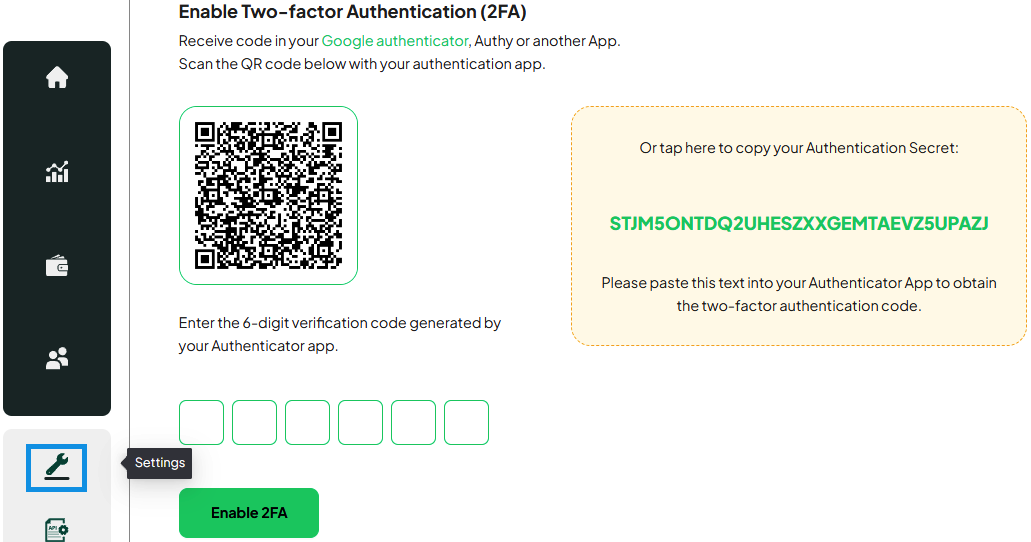
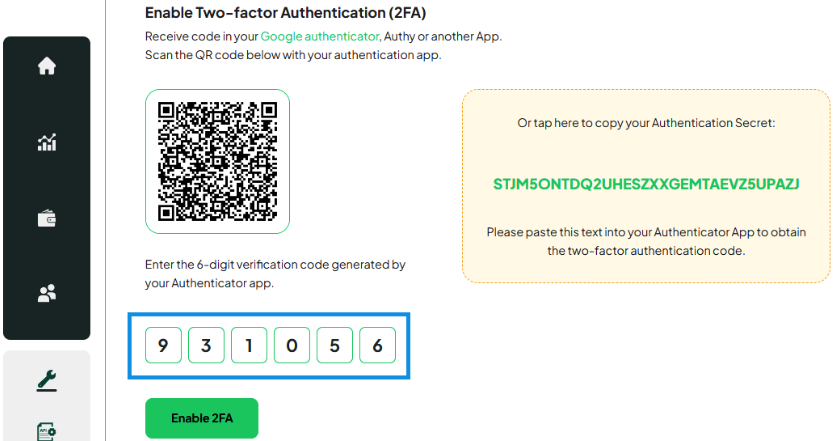
- Enter the 6-digit verification code generated by your authentication app.
- Click Enable 2FA to activate two-factor authentication for your account.
Once enabled, 2FA will be required for performing sensitive actions within the Merchant Portal.
How to Disable Two-Factor Authentication (2FA)
Follow these steps to disable 2FA for your account:
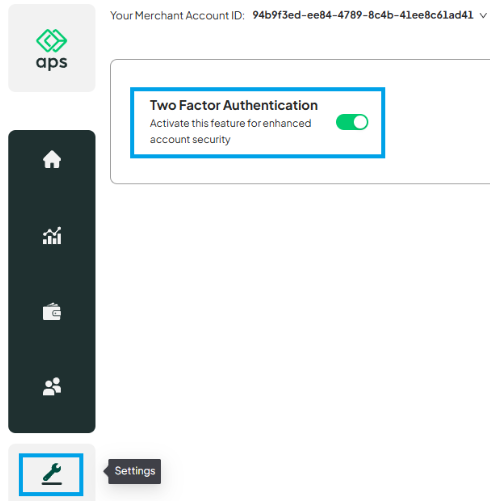
- On the left sidebar, open the Settings menu.
- Locate the Two-Factor Authentication option and toggle the switch to disable it.
- Enter the 6-digit verification code generated by your authentication app.
- Click Confirm and Disable 2FA to complete the process.
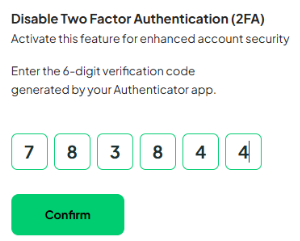
Once disabled, two-factor authentication will no longer be required for your account. Ensure you fully understand the security implications before disabling this feature.
Note: If you remove your account from the authenticator app, you will no longer be able to generate verification codes.To avoid losing access to your account, ensure you disable two-factor authentication in the Merchant Portal before removing the account from your authenticator app.
Was this article helpful?
That’s Great!
Thank you for your feedback
Sorry! We couldn't be helpful
Thank you for your feedback
Feedback sent
We appreciate your effort and will try to fix the article