Refunds enable you to return funds for completed transactions directly through the Merchant Portal. Below is a detailed guide on initiating a full refund, along with key notes on eligibility and user permissions.
Step-by-Step Instructions
Open the Transactions Tab
- On the left sidebar, navigate to the Transactions menu and select the Transactions tab.
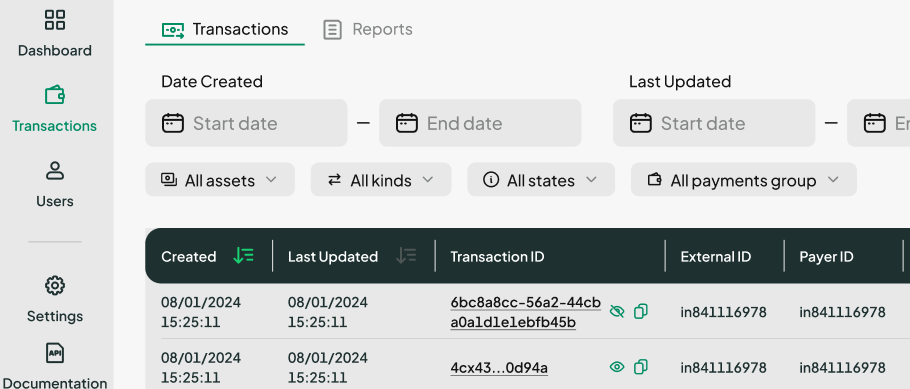
- On the left sidebar, navigate to the Transactions menu and select the Transactions tab.
Locate the Transaction
- Find the transaction you want to refund.
Click the transaction options button (three vertical dots) and select Refund Transaction.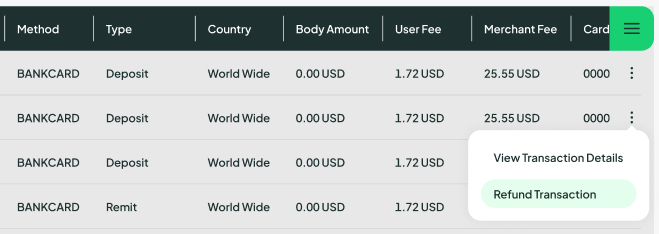
- Find the transaction you want to refund.
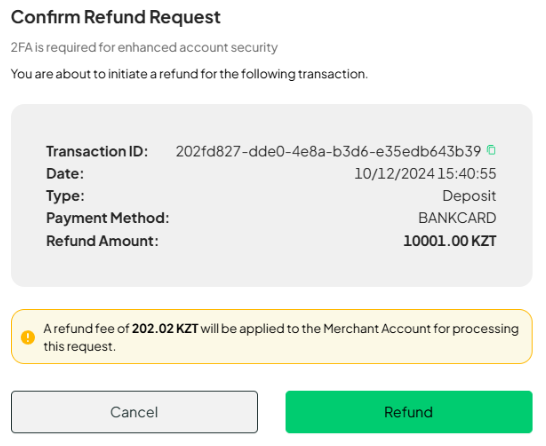
Confirm the Refund
- Click the Refund button to proceed.
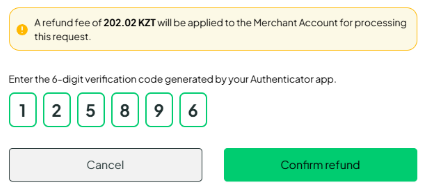
- Enter the 6-digit verification code generated by your Authenticator app.
- Click the Confirm Refund button to finalize the process.
Check Refund Status
- To view the refund status, click the expand icon next to the transaction.
- Once the refund is complete, the transaction status will update to "Refunded."
User Permissions: The refund feature is only available to users with Admin or Finance or Refunds Specialist roles.
Two-Factor Authentication: Two-factor authentication (2FA) must be enabled in the Settings menu to initiate refunds.
Transaction Eligibility: Refunds can only be issued for transactions with a status of "Done".
Was this article helpful?
That’s Great!
Thank you for your feedback
Sorry! We couldn't be helpful
Thank you for your feedback
Feedback sent
We appreciate your effort and will try to fix the article