TABLE OF CONTENTS
Generating reports in the Merchant Portal allows you to efficiently analyze transaction data. Follow the steps below to create, filter, and download transaction reports.
Creating Reports
- Access the Transactions Tab
- On the left sidebar, navigate to the Transactions menu and select the Transactions tab.
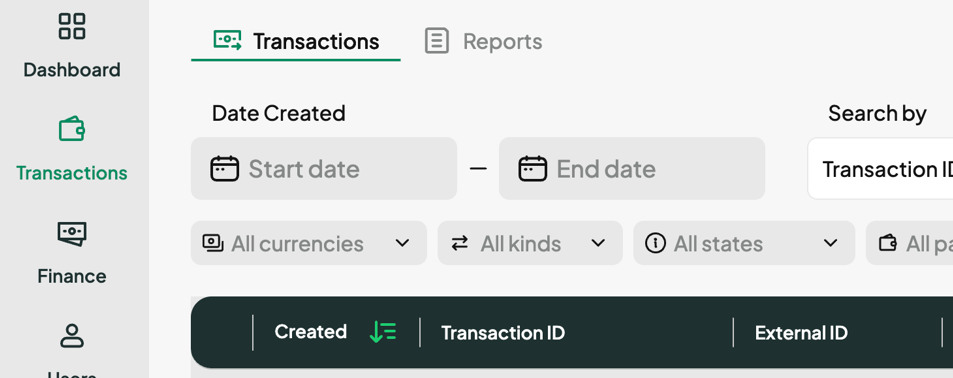
- On the left sidebar, navigate to the Transactions menu and select the Transactions tab.
Apply Filters
Use the available filters to refine the transactions included in your report:- Date Created: Select the Start Date and End Date to see all transactions created during this period (maximum interval of three months).
- Last Updated: Select the Start Date and End Date to see all transactions updated during this period (maximum interval of three months).
- Search By: Select the desired value type to search by, and type the value in the search field.
- Transaction ID: Filter by the APS Transaction ID.
- External ID: Use the transaction ID in your system.
- Payer ID: Filter by the customer ID in your system.
- Operation ID: Filter by the APS Operation ID.
- Currencies: Filter by the currency used in the transaction.
- Transaction Type: Choose from the following:
- Deposit
- Remit
- Refund
- Chargeback
- Operation State: An operation includes all steps of a process like a deposit or withdrawal, tracked together for clarity. Filter by the current state of the Operation:
- Done: Operation completed.
- Pending: Operation is in progress.
- Expired: Payment was not completed in time, and the operation expired.
- Failed: Applicable only for Remits and Refunds. Unable to complete the operation due to lack of funds or error.
- Cancelled: Deposit or Remit was cancelled.
- Refunded: Refund operation completed.
- Chargeback: Applicable only for Deposits. Payment was disputed and refunded to the customer’s account.
- Payment Groups (Methods): Filter by payment methods available on your Merchant account, such as Bankcard, Binance, Cash, Crypto, E-wallet, Wire Transfer, and others.
Search and Export
- After setting the filters, click the Search button to view the results.
- To export the results, click the Export button, then select Create Report.
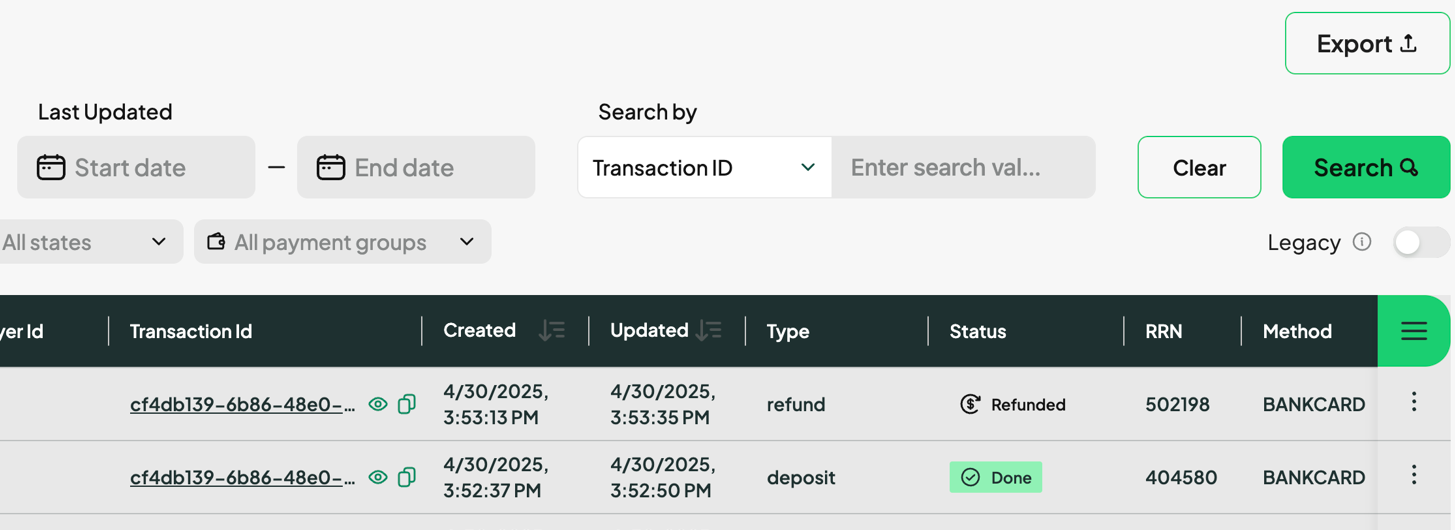
- By default, the list displays up to 20 transactions. To view more, click Show More.
- When creating a report in the interface, the date range must not exceed three months. However, larger periods can be requested via the API.
Customise your Report
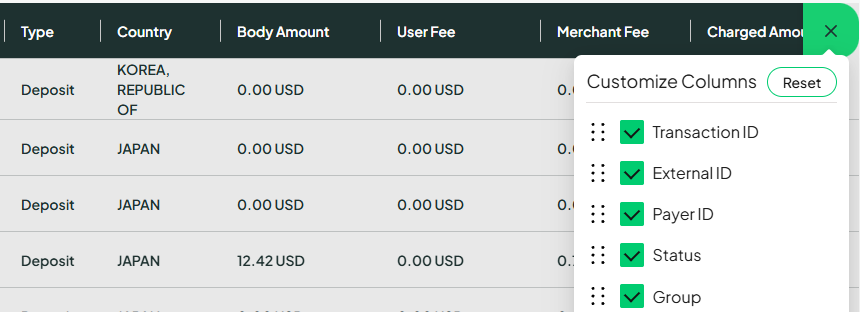
You can customise the information in the report by adding or removing columns. On the right side, click the configuration icon to add/remove columns. You can also reorder them by clicking and dragging them within the list.
Downloading Reports
Access the Transactions Tab
- On the left sidebar, open the Transactions menu and select the Reports tab.
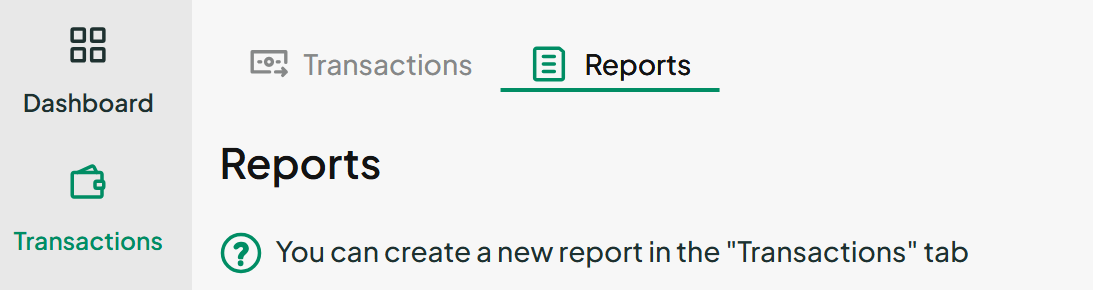
- On the left sidebar, open the Transactions menu and select the Reports tab.
Download a Report
- Locate the report you want to download and click the Download button next to it.
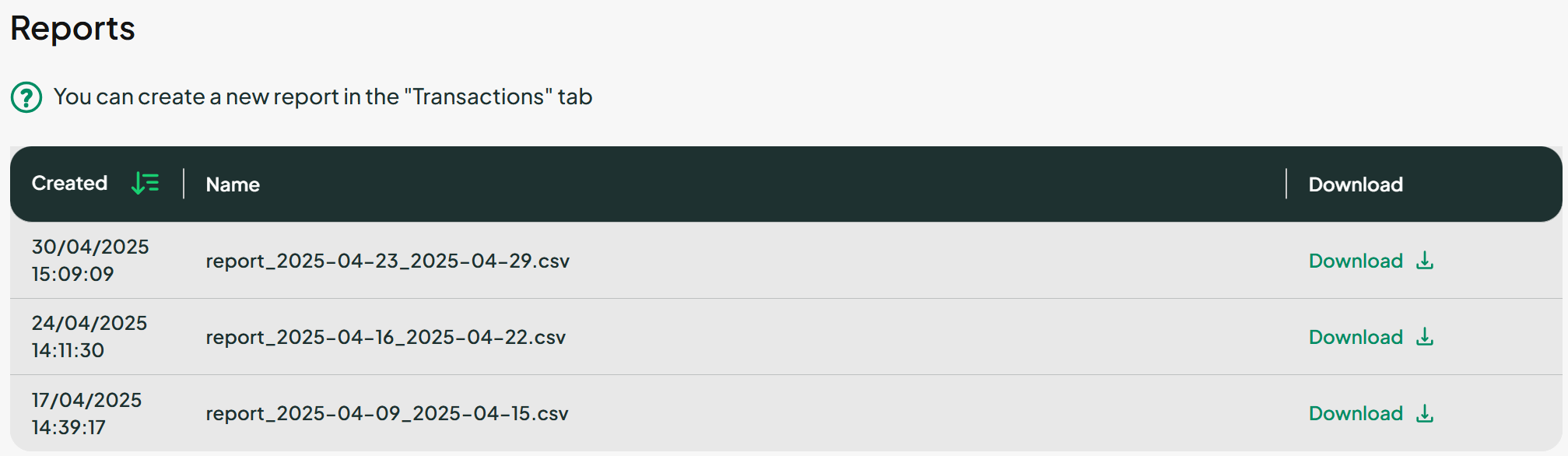
- Reports are only valid at the time of creation.
- When creating a report in the interface, the date range must not exceed three months. However, larger periods can be requested via the API.
Report Data Explained
Below is an overview of the data included in the transactions report.
Was this article helpful?
That’s Great!
Thank you for your feedback
Sorry! We couldn't be helpful
Thank you for your feedback
Feedback sent
We appreciate your effort and will try to fix the article